
Before beginning any review of the Tax Return Data, all sections of source data should have a red tick in front of them, this denotes that all of the entries are complete and ready for review.
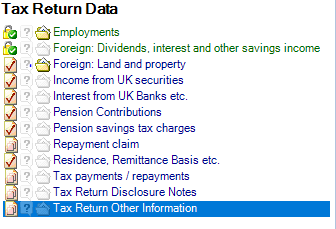
If this is not the case Reviewers should revert back to the Handler to ensure everything is completed and marked up as such. This is captured in the audit trail so is an important step.
As with any review the Reviewer should be reading over the previous year’s notes (which should be in Docman) and also reading over any notes for this year. For this year we will need to review these both on CCH and on the Checklist (we are looking to move fully to the CCH review tool from April 2021 and need to be sure that we are using the product in the best way possible which requires feedback from users).
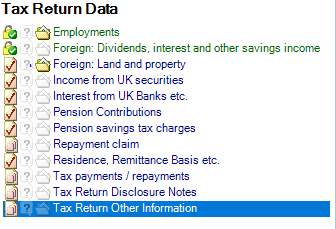
If the Handler has added a note to the source this is denoted by the file icon beside the data source as below:
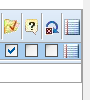
These can be viewed by clicking into the source and viewing them on the far right hand side:
Alternatively all working notes can be viewed as a consolidated report
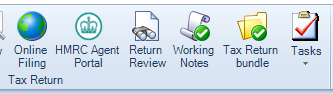
This can then be printed to PDF as required. Notes can be added by clicking the Add sign on the top ribbon, any working notes added are not put on the Tax return or computations being sent to the client. They are just that, working notes.
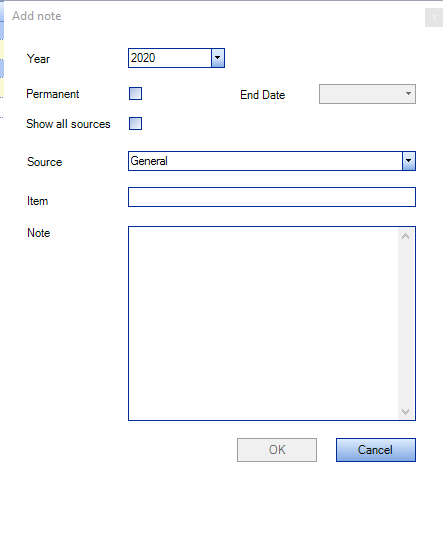
When adding a working note you can link it to an income source, a year and can also make it a permanent note which means it will appear every year on the working notes.
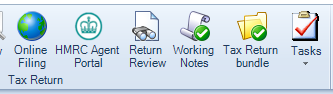
The Review Tool can be accessed from the top ribbon in the main Tax return screen in the same way as the working notes
When opened it will flag up if any of the data sources have not been marked as complete by the Handler, again ensure this is done before beginning a review.
When in the Review Tool you will see each of the sources of income with figures and a comment box at the bottom, if you do not see this then you may need to expand the sources, there is a large blue arrow on the top ribbon that will allow you to do this.
There are other options available on the top ribbon also, an example of where this may be useful is if you are on a second review and merely want to concentrate on items that required further work, in this instance you may want to hide Reviewed Data.
The tool compares the previous year data with the current year being worked on, all variances have been reduced to 1 to allow for all sources to appear.
Clicking on each source will allow you to see any notes, working and Review, for that source. If a Review note has been added a note will appear beside the source with an R on it
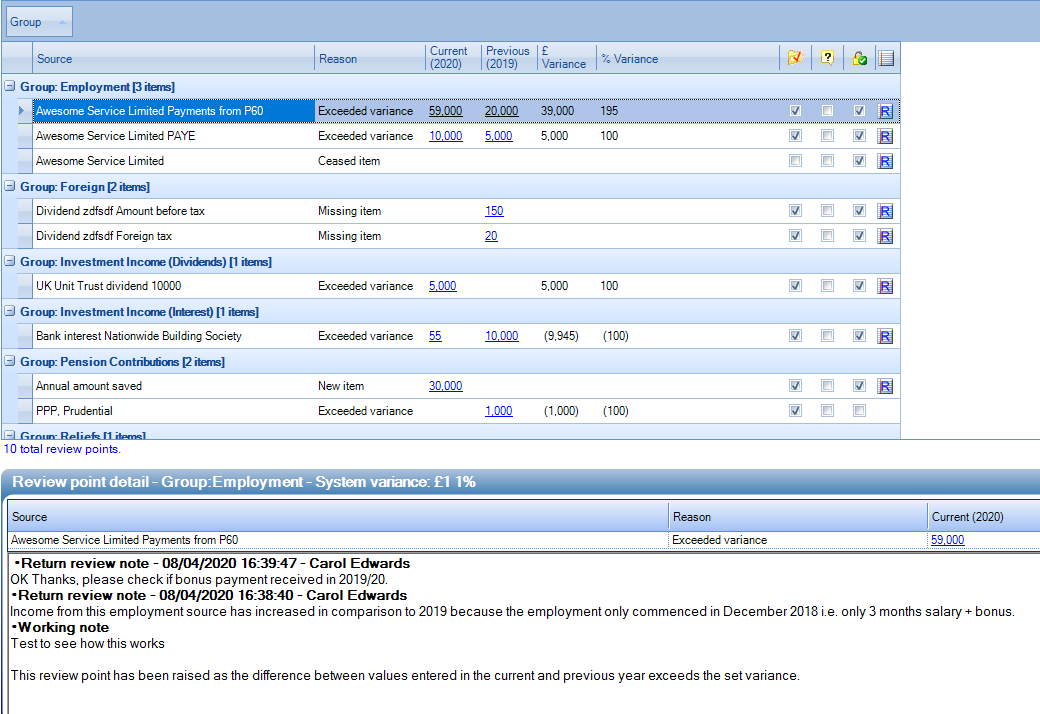
To add a review note click on the blank space under the Notes column or you can add to a note already there. You will see from the detail at the bottom CCH logs the point with the Reviewer, date and time. This space also includes any working notes which have been added for each source, however it does not include any general notes. Any review needs to be done between the Review tool and the Working notes.
It is important to note that each source data entry must be marked as reviewed, this can not be done in one lot, this then locks that source from any further changes.
Before a tax return can be issued to a client all source data entries must be green and locked.
To finalise your review we would suggest that the Review Tool Report be viewed and can be saved into Docman or sent to a colleague by e-mail should that be required. Remember however that the report for a year remains in CCH and can be viewed at any time.
To access the report click on Return Review on the top ribbon as before and then View Report on the same top ribbon.
The report consolidates all entries in the tool and any notes and review points added to each source.